
Genesis Parent & Student Portal
Does the Genesis Parent/Student Portal have an 'app' for mobile devices?
Yes, parents and students accessing the portal via a mobile device can now use the Install App button to save Genesis as an application on their device.
The Install App tool is found at the bottom of the portal's side bar.
This will present the user with two options for installing the app, on either Android or iPhone: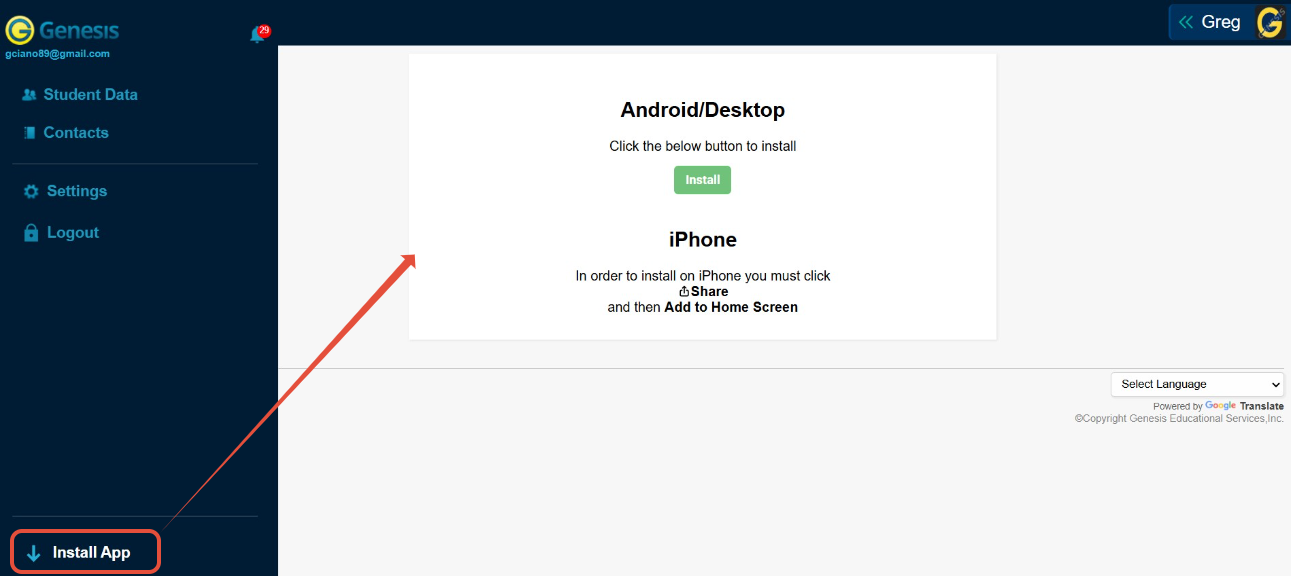
Please Note: This app is not available for download on any app stores. It is only accessible in the parent portal.
What is the difference? Are there benefits to using the APP instead?
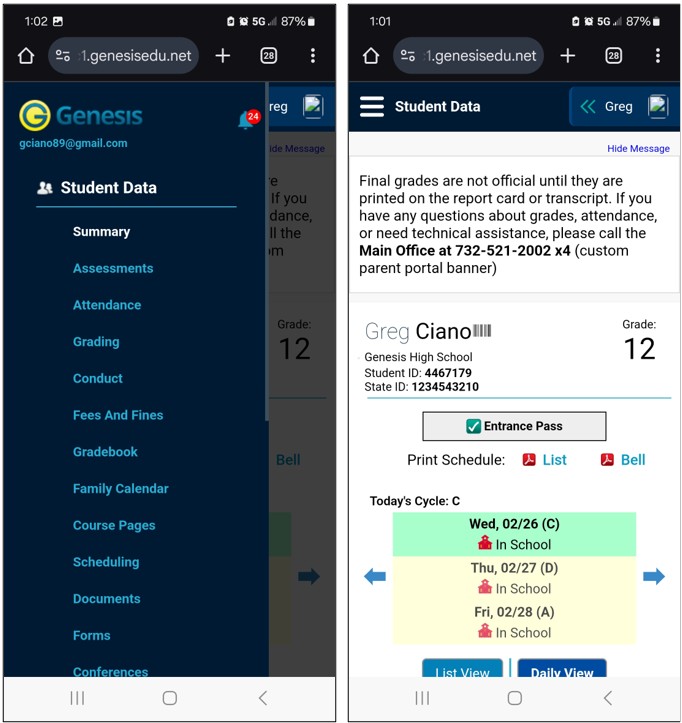
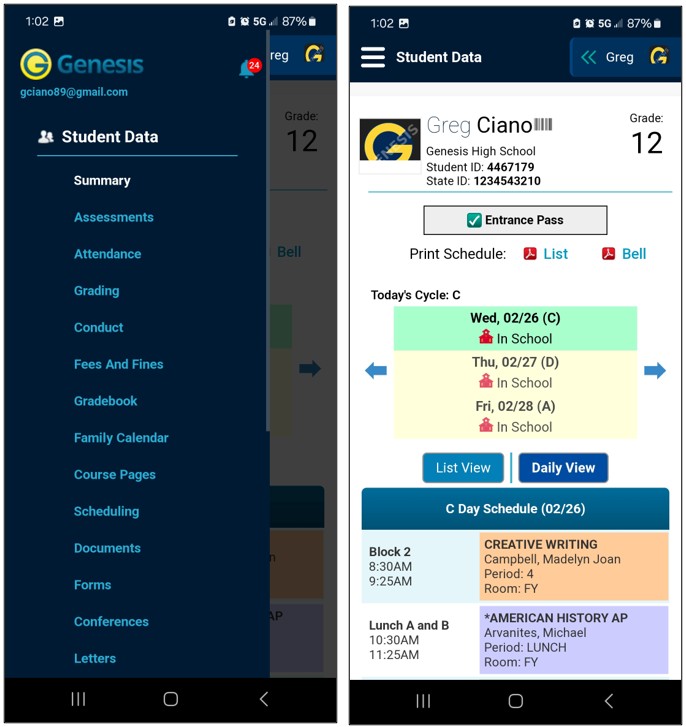
Here are some key differences when using the Genesis Portal app versus using the browser on your mobile device:
- If using the mobile APP you may not be required to provide login details each time it is accessed or opened.
- The view on the APP is much cleaner as there are no browser buttons or tools
Original Mobile View:
Mobile View of the APP:
How to Install on Android
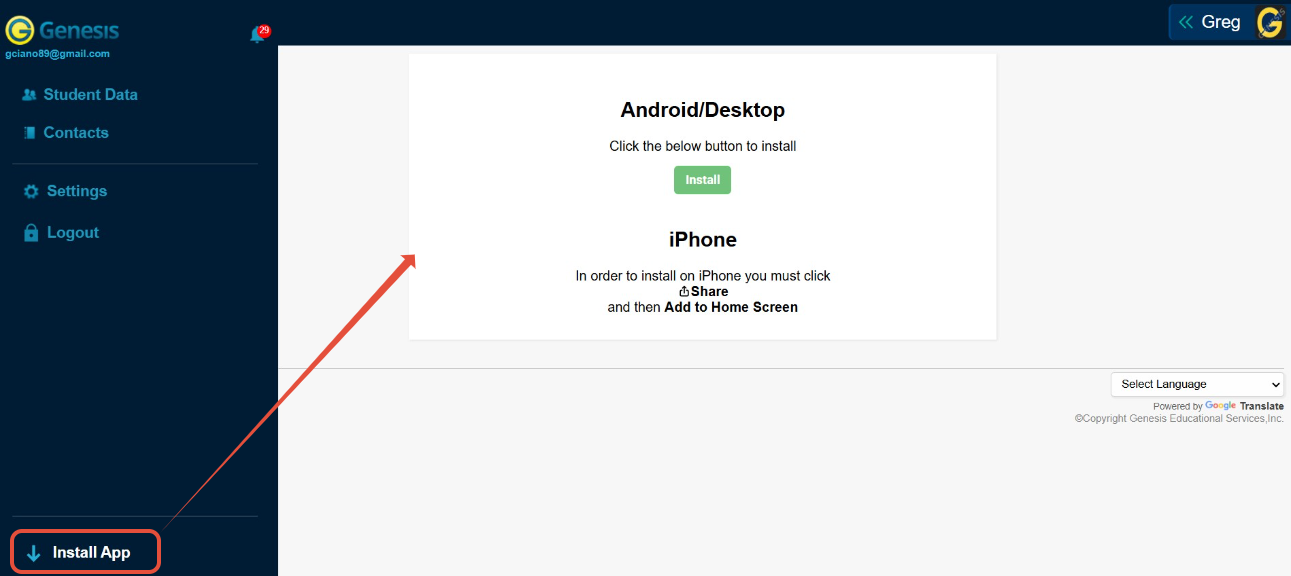
Here are the steps the parent or student takes to install the Genesis Portal app on an Android device:
- Log into the Parent Portal or Student Portal from your mobile device.
- Click on "Install App" using the sidebar on the left.
- On the following screen, use the green "Install" button to add the APP to your phone.
- Open the new APP on your mobile device. It will be titled Genesis
- Login and continue using the Parent/Student Portal.
How to Install on iPhone
Here are the steps the parent or student takes to install the Genesis Portal app on an iPhone device:
- Visit the district's Parent Portal or Student Portal website and log into your account.
- Click into the Share options within your phone's browser.
- Click Add to Home Screen to save the site to your phone's home screen as an APP.
- Locate the new APP on your mobile device. It will be titled Genesis
- Then login using the new APP by clicking on the new icon that was added to your home screen.
Please note: Precise instructions may vary slightly between different mobile devices.